If you've ever been asked "what firewall rules does Qualys need?" and found yourself clicking through five different documentation pages, this guide is for you. Let's break down exactly how Qualys components communicate, what access they need, and how to set this up correctly the first time.
Overview: The Core Components
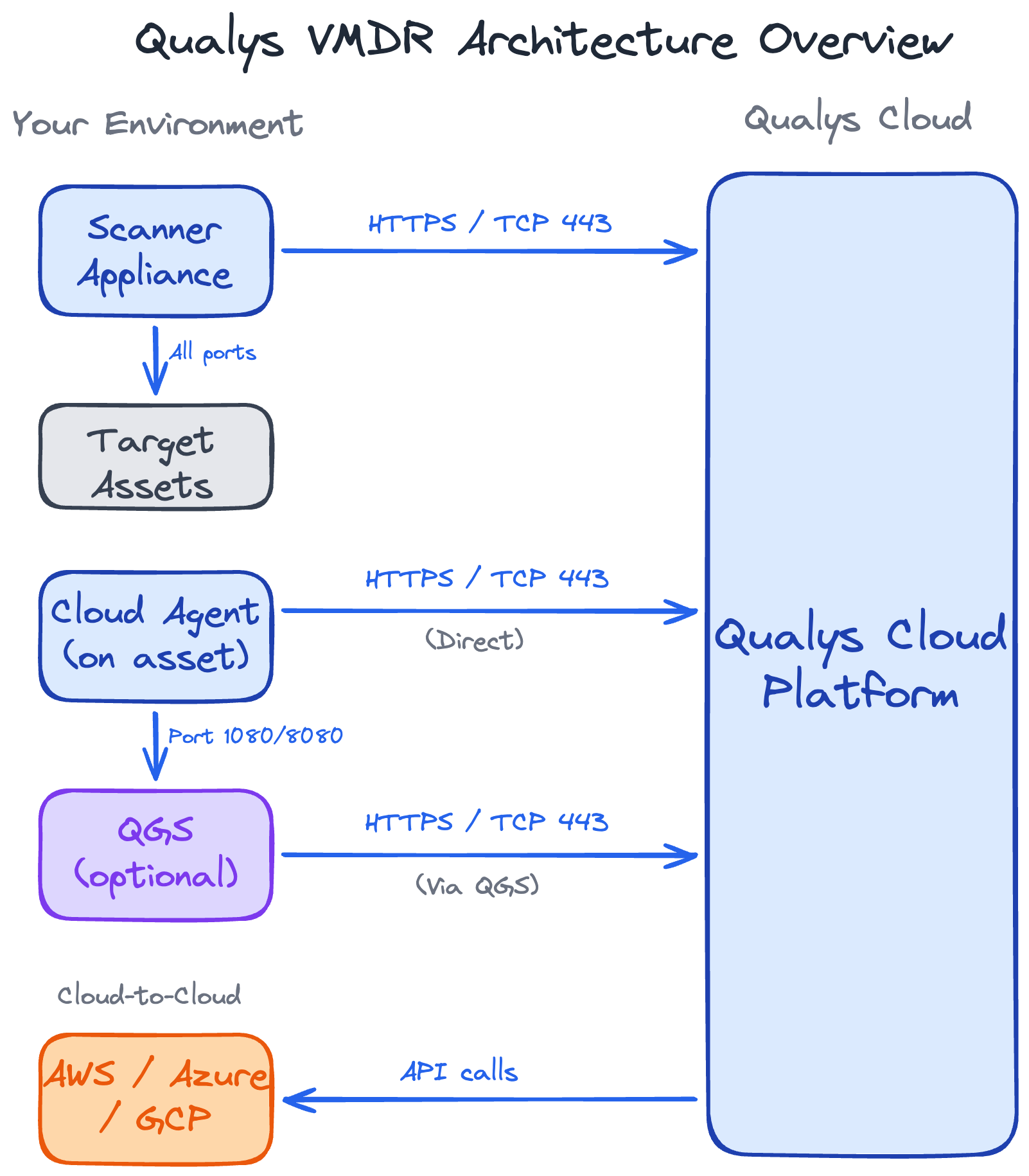
Qualys VMDR is built on four main components, each with different network requirements.
1. Qualys Cloud Platform (also known as Enterprise TruRisk Platform)
The service hosted in Qualys data centers. This is where you log in, configure scans, view results, and access the API. Everything ultimately reports back here.
2. Scanner Appliances
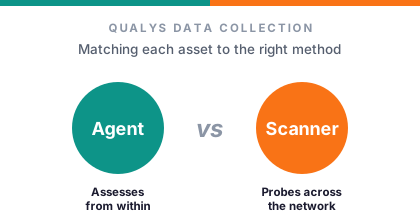
Virtual or physical appliances you deploy in your network. They perform vulnerability scans by actively probing your assets, then send results back to the Qualys Cloud Platform.
3. Cloud Agents
Lightweight software installed on servers and workstations. Unlike scanners, agents run directly on the asset and continuously monitor for vulnerabilities without needing network scans.
4. Cloud Connectors
API-based integrations with AWS, Azure, GCP, and other cloud-computing platforms. No software deployment required - Qualys connects directly to your cloud provider's API to pull inventory and security configuration data.
Each of these has different network requirements. Understanding the architecture of each component will save you hours of troubleshooting during deployment.
Scanner Architecture
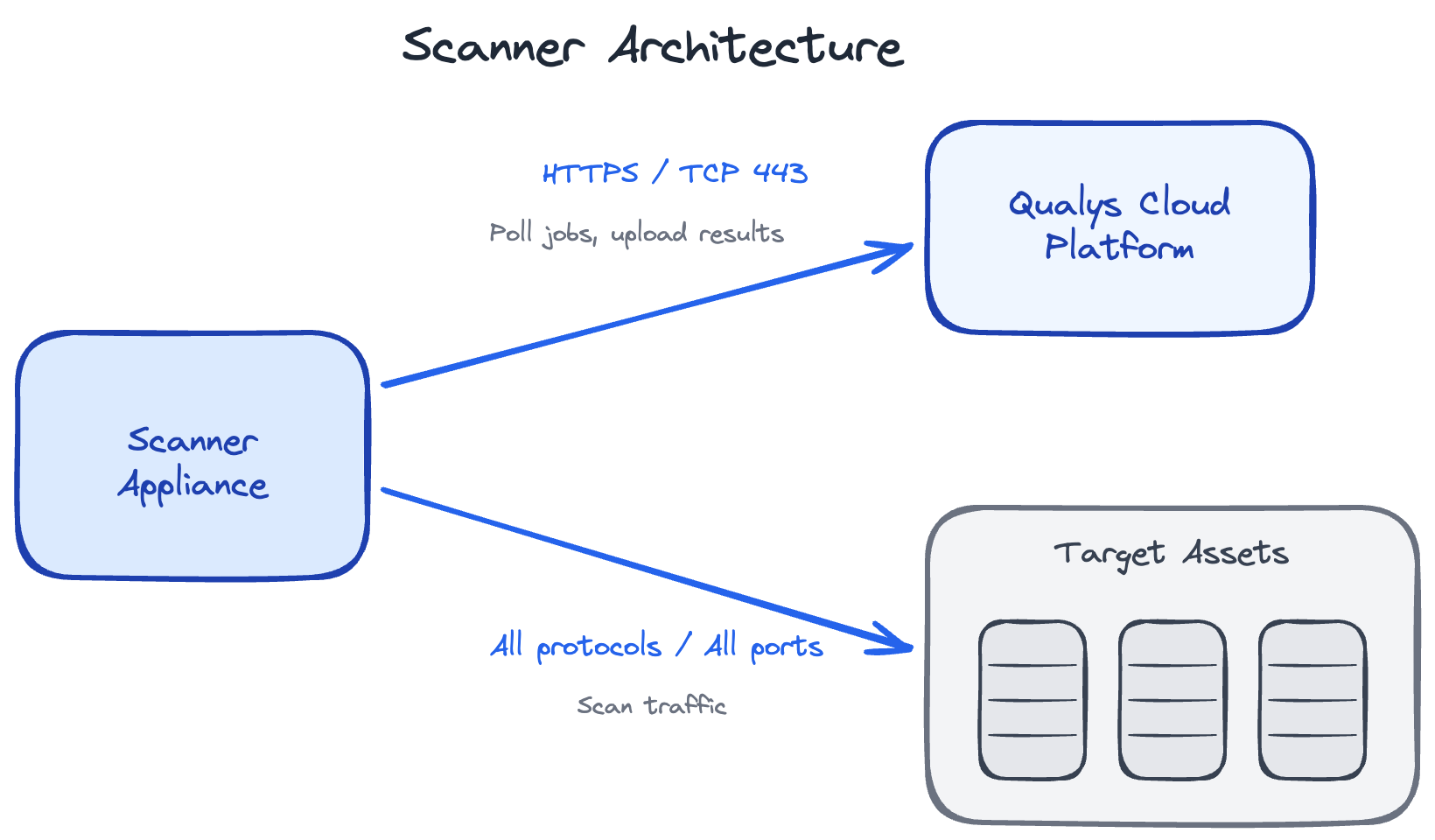
Scanners need two types of network access.
1. Scanner access to Qualys Cloud
This applies to Internal scanners only. External (Qualys-hosted) scanners already have access to the Qualys cloud.
Scanners need outbound HTTPS connection to the Qualys Cloud Platform. This is how they receive scan jobs, upload results, and get vulnerability signature updates.
The connection pattern is simple: the scanner polls the Qualys cloud every 180 seconds asking "got any work for me?" When a scan is scheduled, Qualys responds with the scan configuration. The scanner executes the scan locally, then uploads results back to the cloud.
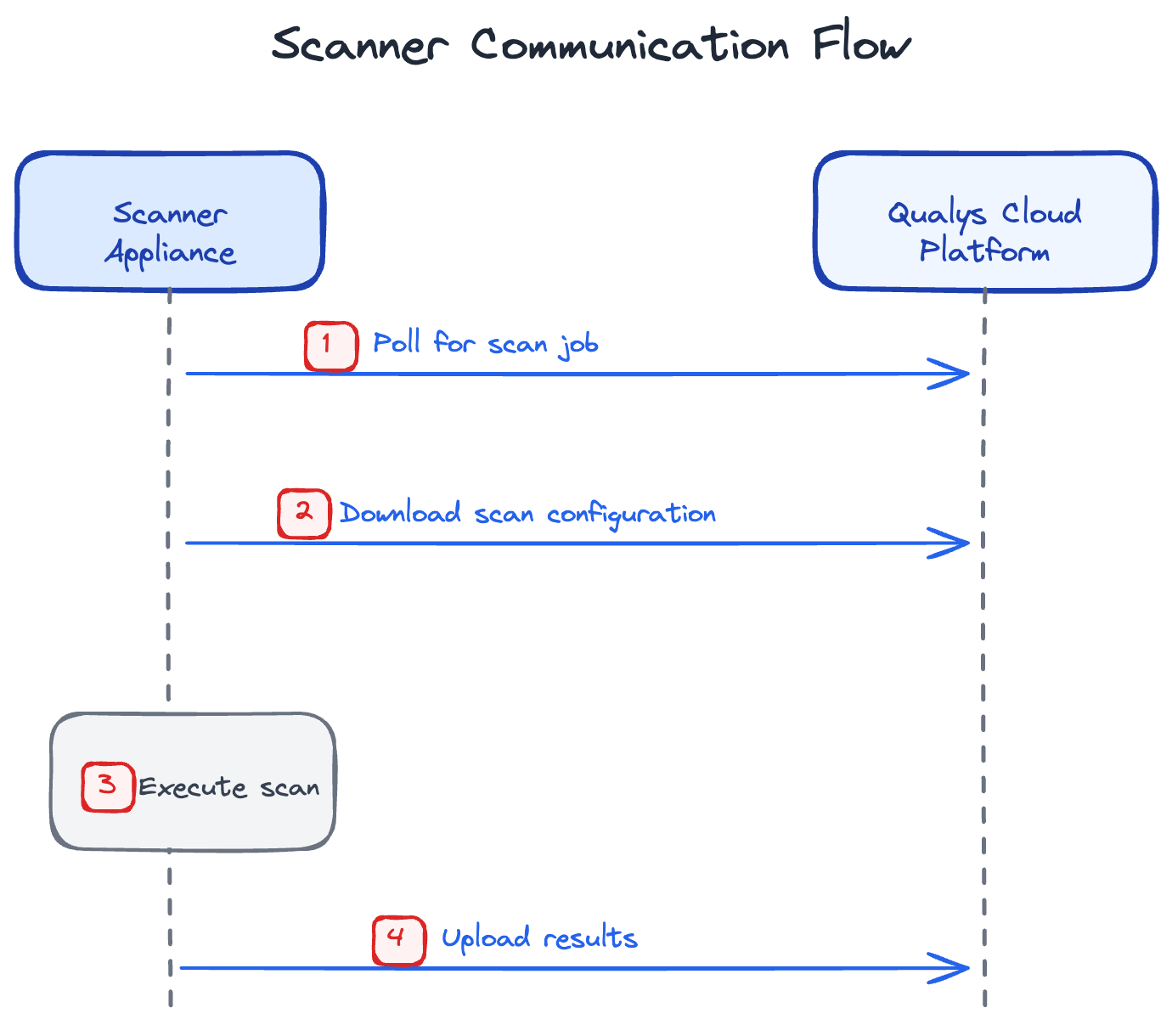
This is outbound HTTPS only - TCP port 443. The scanner initiates all communication.
Qualys never makes inbound connections to your scanner. You don't need to open any inbound ports on your firewall for this communication.
Which Qualys URLs/IPs?
The specific URLs depends on which Qualys platform (pod) your subscription is on.
To identify the required URLs go to VMDR > Scans > Help > About
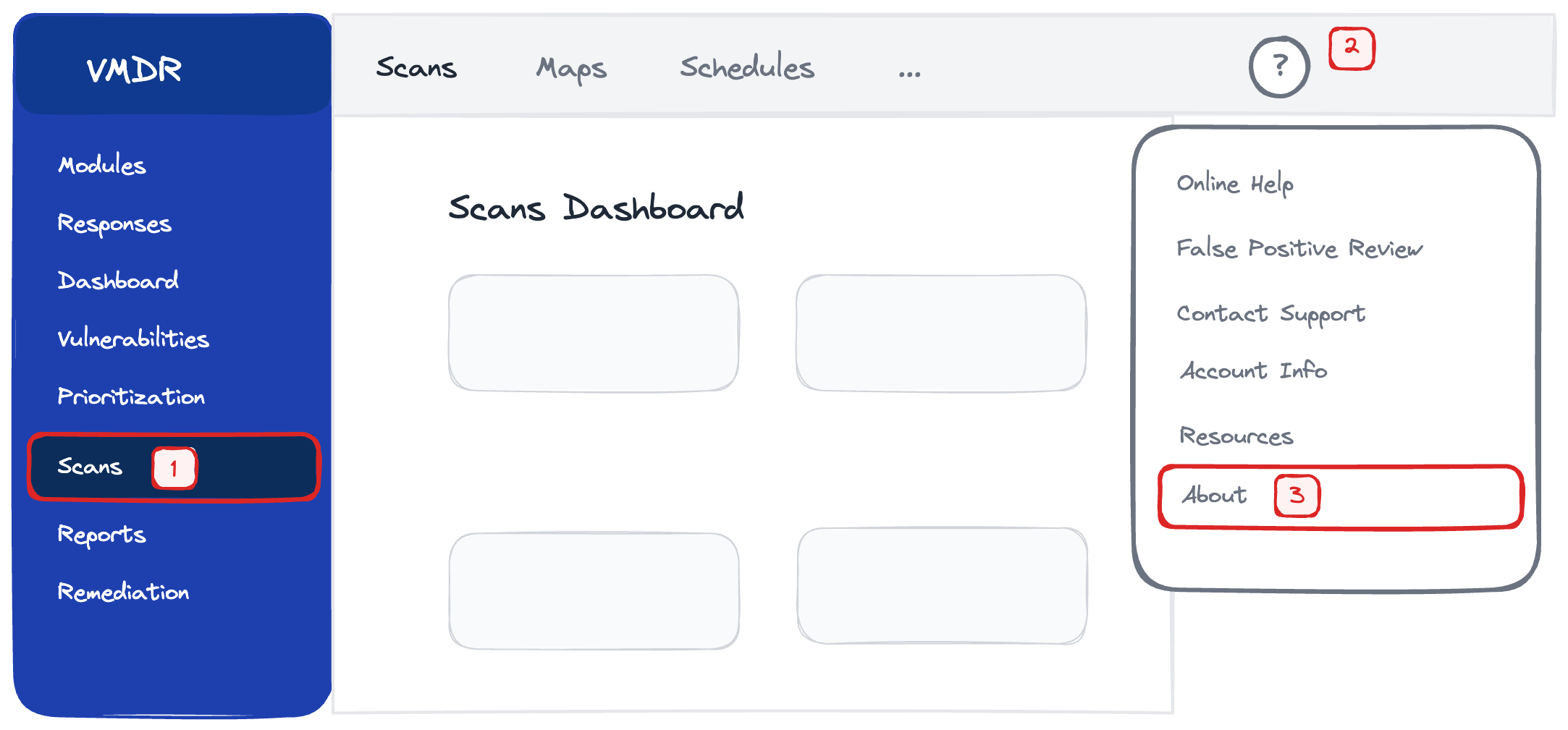
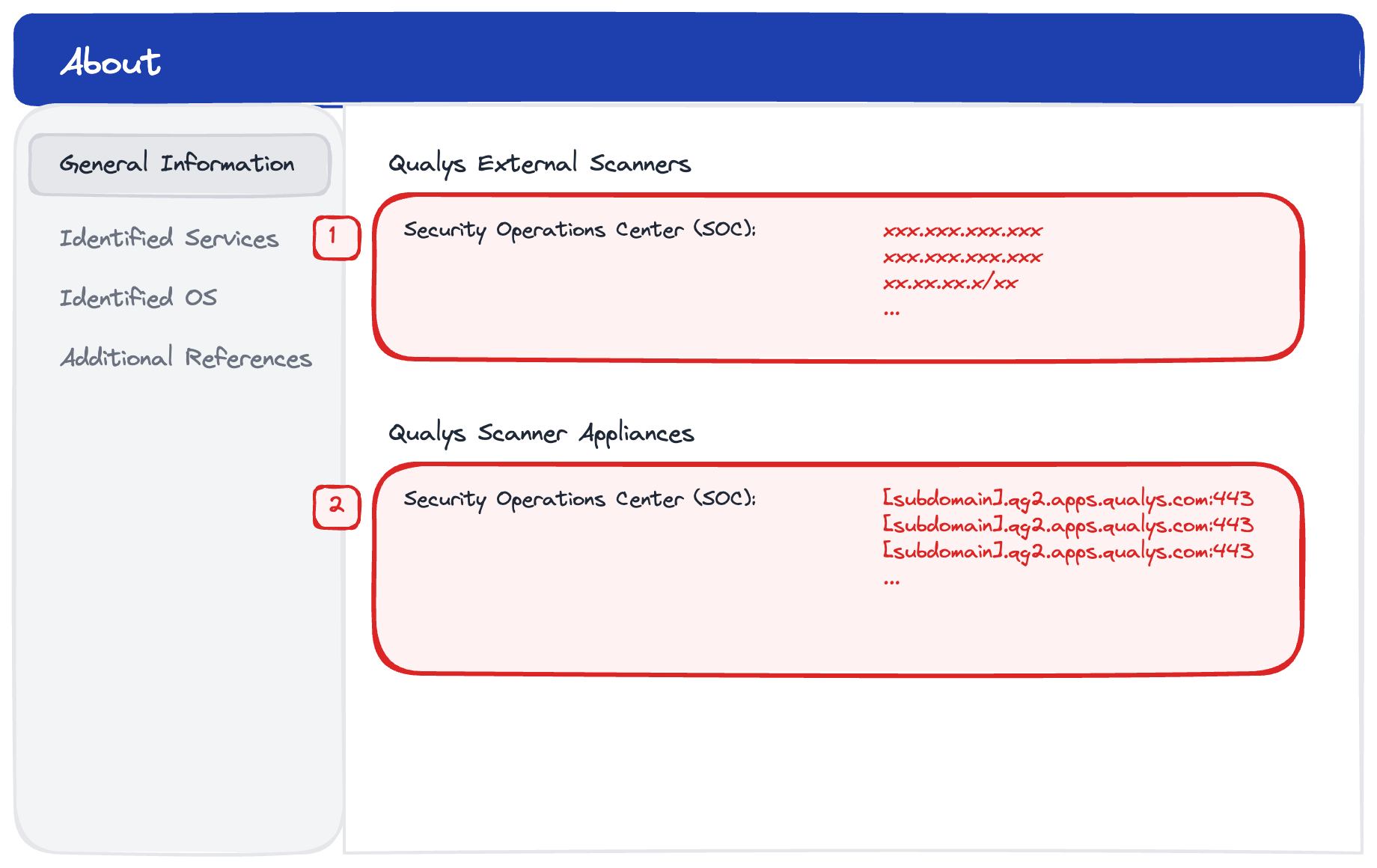
Your scanner needs to reach your specific platform URLs on TCP 443. If you have a corporate proxy, the scanner supports proxy configuration.
2. Scanner access to Target Assets: Full Whitelist
This applies to both Internal and External scanners.
The scanner needs unrestricted access to everything it's supposed to scan.
Whitelist the scanner to communicate with all target assets on all ports. The specific ports used during scanning depend on what services are running on your targets and what type of scan you're performing.
Key point: The scanner reaches out to targets, probes them, collects data, and reports back to Qualys cloud. Targets don't need to reach back to the scanner or the Qualys Cloud Platform.
Management access to the scanner
This applies to Internal scanners only. External scanners are managed by Qualys.
Internal scanners need management access so your team can configure them. This is separate from the Qualys cloud communication.
Important: The scanner appliance has no listening services. You cannot SSH to it or access a web interface remotely.
Management is performed through the hypervisor console - the same way you'd access any virtual machine's console in VMware vSphere, Hyper-V, or any other virtualization platform you're using.
Log in to your hypervisor management interface (vCenter, Hyper-V Manager, etc.), open the scanner's console, and access the configuration interface directly through the VM console.
This means you don't need to open any inbound firewall ports for scanner management. All management access happens at the hypervisor level, not over the network.
The Two Connection Points
Your scanner sits in your network with two connection types:
- Outbound to Qualys Cloud (HTTPS:443) - continuous, scanner-initiated
- Outbound to your target assets (all ports) - during scans only
The architecture is designed so the scanner has zero inbound connections. Everything is scanner-initiated. Management happens through the hypervisor console, not over the network.
Cloud Agent Architecture
Agents have a simpler architecture than scanners because they don't need to reach out over the network to scan other devices. They just need to talk to Qualys and monitor the asset they're installed on.
Agent to Qualys Cloud: Outbound Only
Like scanners, agents communicate with the Qualys Cloud Platform over outbound HTTPS on TCP 443. The agent initiates all connections.
There are no inbound connections required from Qualys to the agent.
Communication Pattern
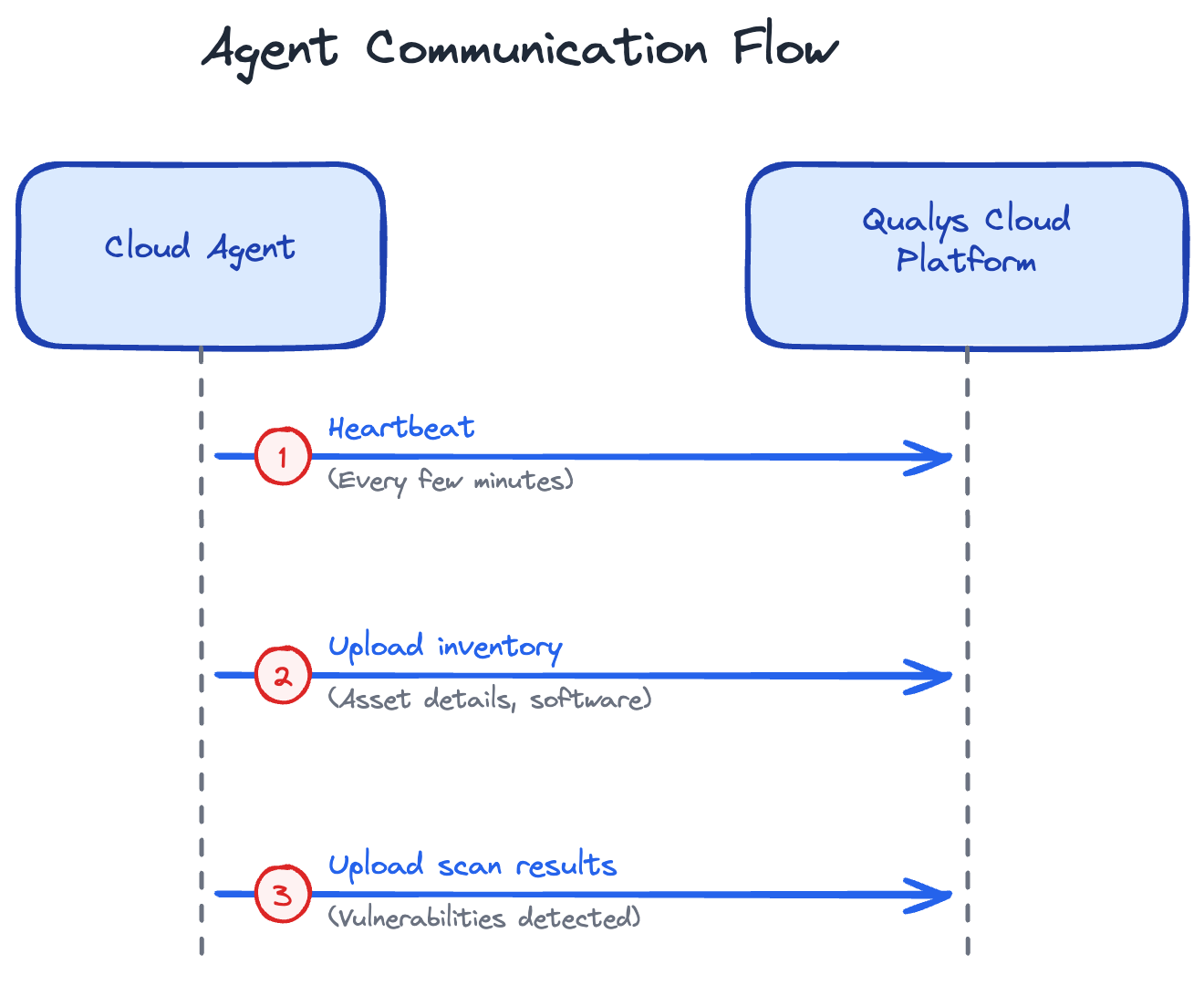
The flow is straightforward:
- Agents send a heartbeat every few minutes to let Qualys know they're online
- They periodically send inventory data (installed software, running services, system configuration)
- When a vulnerability scan is triggered, the agent performs the scan locally and uploads results
Because the agent runs directly on the asset, it doesn't need to traverse your network to scan anything. It already has local access to everything it needs - the file system, registry, installed applications, running processes.
This makes the network architecture much simpler than scanner-based deployments.
Which Platform URL?
To identify the required URLs go to VMDR > Scans > Help > About
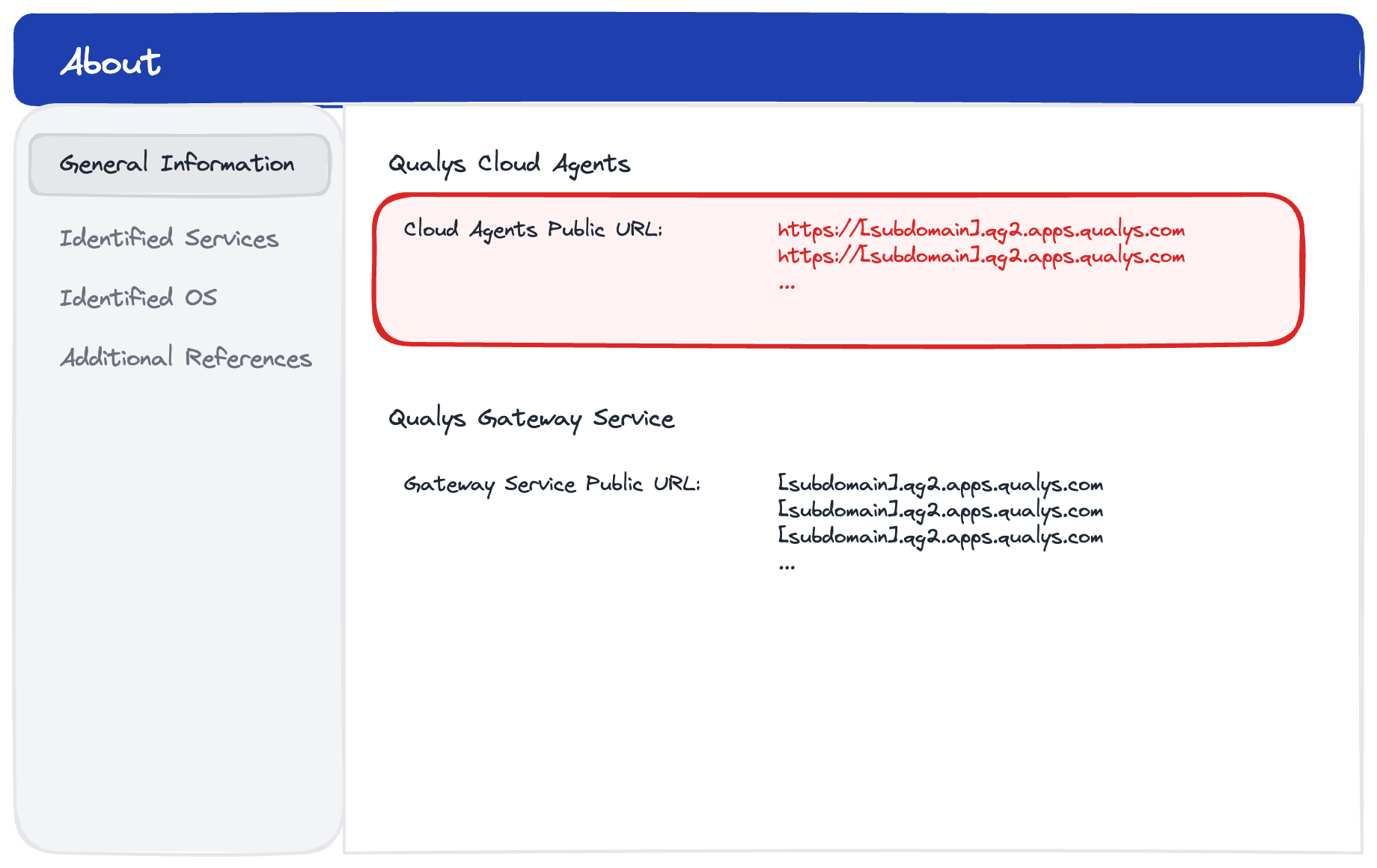
No inbound ports required. No exceptions.
Proxy Support
Many organizations route outbound internet traffic through a corporate proxy. Qualys agents support this configuration.
Agents can be configured to use HTTP or HTTPS proxies with authentication (NTLM or Basic auth). They also support PAC (Proxy Auto-Config) files if your environment uses automatic proxy configuration.
Specify proxy settings during deployment or push the configuration through your endpoint management tool afterward.
QGS: Qualys Gateway Service
In some environments, you can't allow agents to connect directly to the Qualys cloud. Either because of security policies (air-gapped networks) or bandwidth constraints (remote sites with limited connectivity).
For these scenarios, Qualys offers the Gateway Service (QGS).
How QGS Changes the Architecture
Instead of agents connecting directly to Qualys cloud, they connect to a local QGS appliance you deploy in your network.
The QGS acts as an aggregation point - it collects data from all local agents, then forwards it to the Qualys cloud.
Important architectural difference: QGS uses different ports than direct agent-to-cloud communication:
- Port 1080 - Standard QGS proxy port (agents connect to QGS)
- Port 8080 - QGS cache port (when Cache Mode or Patch Mode is enabled)
Cache Mode allows the QGS to cache downloaded Cloud Agent artifacts (manifest files, patches). The first agent downloads files from Qualys cloud; subsequent agents download cached copies from the local QGS. This reduces WAN bandwidth usage.
Why Use QGS?
The benefit is reduced WAN bandwidth usage and support for air-gapped environments. The agent → QGS communication happens locally on your network. Only the QGS needs outbound access to Qualys cloud.
The architecture becomes:
- Agents → QGS (local network, port 1080 or 8080)
- GGS → Qualys Cloud (outbound HTTPS:443)
When to use QGS:
- Remote offices with limited WAN bandwidth
- Air-gapped or isolated network segments
- Environments with hundreds of agents at a single location (reduces duplicate downloads)
- Data centers where you want to minimize internet-bound traffic
If your agents can reach the internet directly, you don't need QGS, however using it reduces bandwidth usage and simplifies architecture.
Agent Architecture Summary
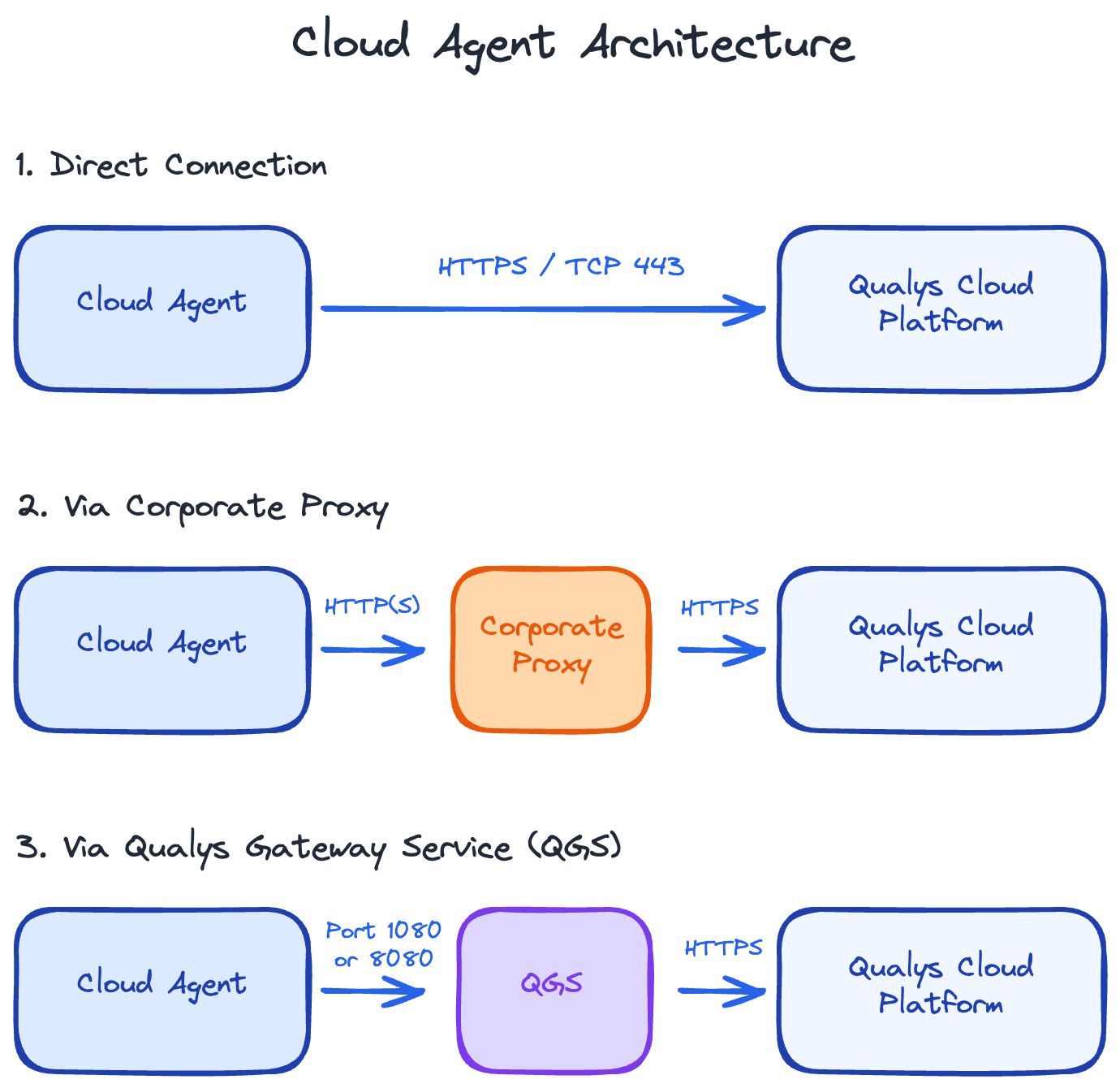
Standard deployment:
- Agent → Firewall → Qualys Cloud (HTTPS:443)
With corporate proxy:
- Agent → Corporate Proxy → Firewall → Qualys Cloud (HTTPS:443)
With QGS (air-gapped or bandwidth-constrained):
- Agent → QGS → Firewall → Qualys Cloud
In all cases, the agent never accepts inbound connections. Everything is agent-initiated outbound traffic.
Cloud Connector Architecture
Cloud Connectors work completely differently from scanners and agents. There's no software to deploy, no appliances to manage, and no network traffic from your environment.
API-Based Model
Cloud Connectors are purely API-based. Qualys Cloud Platform connects directly to your cloud provider's API to pull inventory and security configuration data.
The connection happens entirely between two cloud platforms:
- Qualys Cloud → AWS/Azure/GCP API endpoints
Your internal network isn't involved at all.
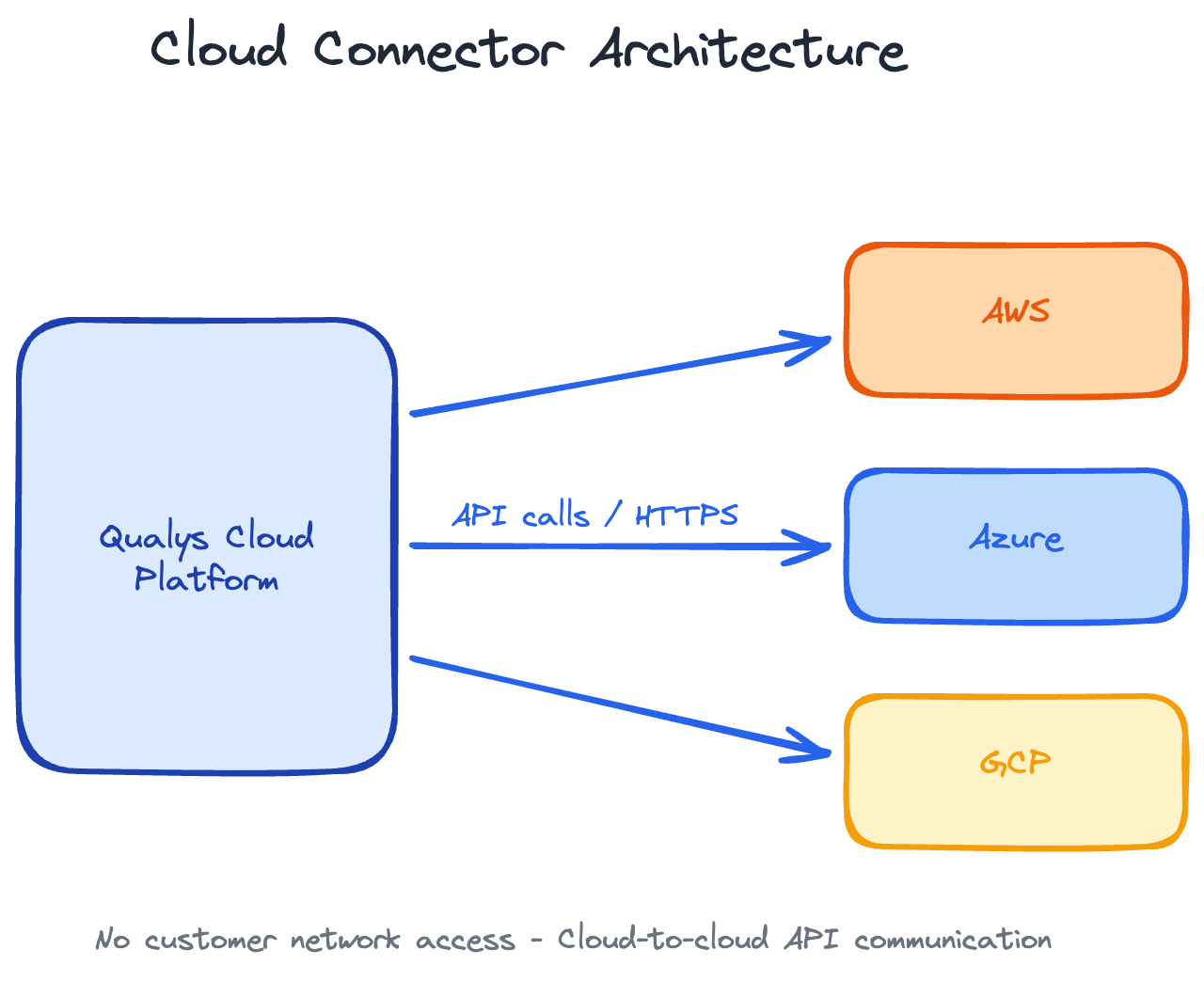
No Customer Firewall Rules Required
Because there's no software running in your environment and no network traffic originating from your network, you don't need to configure any firewall rules for Cloud Connectors.
The only requirement is granting Qualys the appropriate API permissions to read your cloud inventory.
Communication Flow
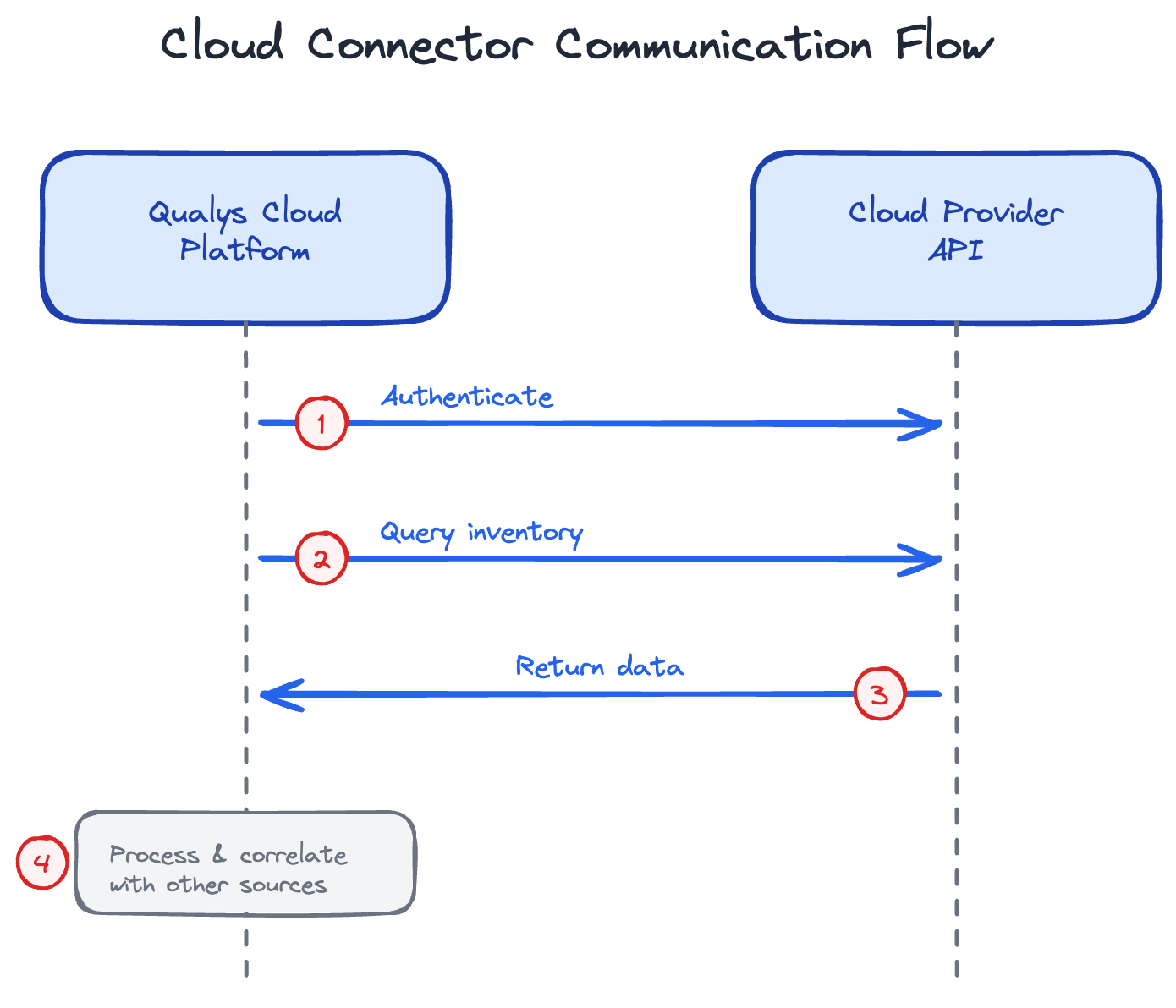
The flow is always initiated by Qualys:
- Qualys Cloud Platform authenticates to your cloud provider's API
- Qualys queries for inventory (instances, security groups, IAM, etc.)
- Data is pulled back to Qualys Cloud Platform
- Qualys processes and correlates the data with other sources (agents, scanners)
Your cloud provider's API endpoints are public and internet-accessible by design, so Qualys doesn't need any special network access.
Data in Transit
All communication between Qualys components and the Qualys Cloud Platform is encrypted.
Scanners, agents, and Cloud Connectors all use TLS 1.2 or higher for encryption. Certificate validation is enforced on all connections. No plaintext data is transmitted between components and the Qualys platform.
This applies to all traffic: scan results, inventory data, API calls, and configuration updates.
Firewall Rule Templates
Here are the complete firewall rules for each Qualys component.
Scanner Firewall Rules
| Source | Destination | Port | Protocol | Purpose |
|---|---|---|---|---|
| Scanner appliance | [Your Platform URLs/IPs] | TCP 443 | HTTPS | Qualys Cloud communication |
| Scanner appliance | Scan target networks | All | All | Vulnerability scanning |
Notes:
- Get your platform URL and IPs from: VMDR > Scans > Help > About
- Target networks = all networks containing assets you want to scan
- No inbound rules required to scanner
Cloud Agent Firewall Rules for direct communication
| Source | Destination | Port | Protocol | Purpose |
|---|---|---|---|---|
| All agents | [Your Platform URLs] | TCP 443 | HTTPS | Qualys Cloud communication |
Notes:
- Get your platform URL and IPs from: VMDR > Scans > Help > About
- No inbound rules required to agents
Cloud Agent via Corporate Proxy
| Source | Destination | Port | Protocol | Purpose |
|---|---|---|---|---|
| All agents | Corporate proxy | TCP 8080* | HTTPS | Via corporate proxy |
| Corporate proxy | [Your Platform URLs] | TCP 443 | HTTPS | Proxy to Qualys Cloud |
*Port varies by proxy configuration - typically 8080, 3128, or 8888
Notes:
- Agents must be configured to use the proxy
- Proxy must allow HTTPS connections to your Qualys platform
Cloud Agent via QGS
| Source | Destination | Port | Protocol | Purpose |
|---|---|---|---|---|
| All agents | QGS appliance | TCP 1080 or 8080* | HTTP | QGS proxy connection |
| QGS appliance | [Your Platform URLs/IPs] | TCP 443 | HTTPS | QGS to Qualys Cloud |
*Port depends on QGS configuration:
- Port 1080 = Standard proxy mode
- Port 8080 = Cache mode (optional, improves bandwidth efficiency)
Choose one based on your QGS configuration. If cache mode is enabled, use 8080. Otherwise, use 1080.
Notes:
- Agents connect to QGS using either 1080 or 8080, not both
- QGS must have outbound HTTPS access to Qualys Cloud
Cloud Connector
No customer firewall rules required.
Cloud Connectors are API-based only. Communication happens between Qualys Cloud Platform and your cloud provider's API endpoints.
Final Thoughts
Qualys architecture is simple: scanners and agents need outbound HTTPS access to your platform, and that's it.
Get your platform URLs, configure the firewall rules, test connectivity, and you're ready to deploy.
What to Do Next to Get Started
- Identify your Qualys platform URLs from Help > About
- Create firewall rules based on the templates above
- Deploy your first scanner or agent
- Verify communication is working
Found this useful? Share it with your team.